

Seonix is now available as a plugin in ChatGPT. On November 17, 2026 it was published in the ChatGPT plugin directory after OpenAI's review. Install it once, approve the connection, and ChatGPT answers SEO questions from your own website's data: the Seonix audit, your Google Search Console numbers, keyword research and the articles you have published.
That is the difference that matters. Ask ChatGPT a general SEO question and you get general advice. Ask it with Seonix connected and it tells you which of your pages Google has not indexed, which queries sit just outside page one, and what to write next.
What Is the Seonix Plugin for ChatGPT?
The Seonix plugin for ChatGPT is a connection between ChatGPT and your Seonix account. Seonix crawls your site, tracks every issue it finds, reads Search Console, researches keywords and writes articles. The plugin lets ChatGPT read that data when you ask. ChatGPT does the reasoning and the explaining; Seonix supplies the facts and the scoring.
You will find it in ChatGPT under Plugins, listed as Seonix, by Seonix. The step-by-step setup is on the Seonix plugin for ChatGPT page.
What Changes When ChatGPT Can See Your Site
We connected the plugin to our own site, seonix.ai, on the day it was published and asked one question: "What are the biggest SEO problems on my site right now?"
ChatGPT worked for 31 seconds and answered from two sources: that day's Seonix audit of 193 pages and Search Console data for October 18 to November 14. The site's health score was 99 out of 100, and ChatGPT did not stop at the score. Its first finding was that 12 of 185 inspected URLs were not indexed by Google, and it named them. A high audit score had hidden a real problem, and the answer said so.
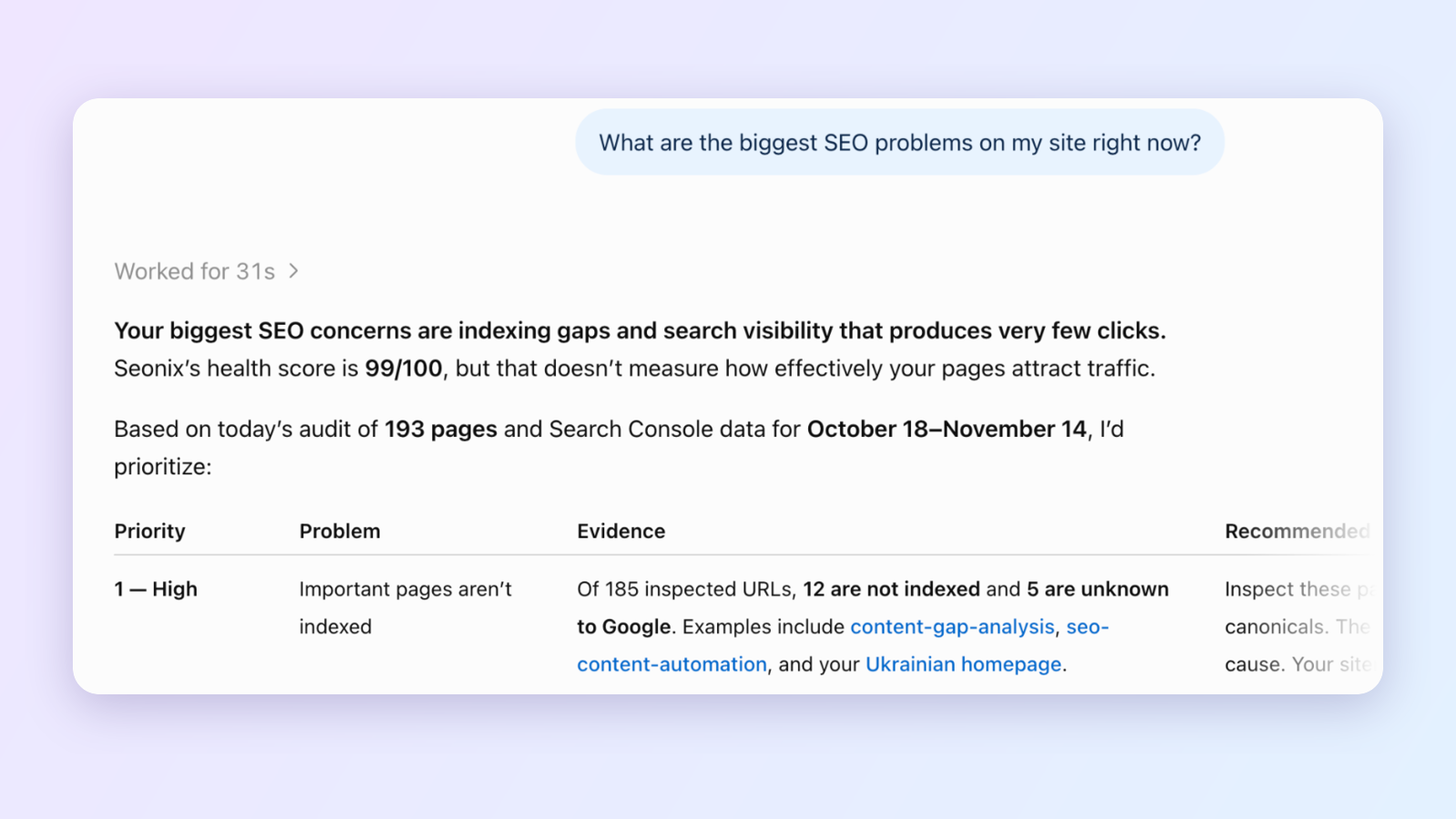
The same question without the plugin gets a checklist that fits any website. The table shows how four common questions change.
| Your question | ChatGPT alone | ChatGPT with Seonix |
|---|---|---|
| What should I fix first? | A general checklist: titles, speed, links | Your open problems in order, each with the page it sits on |
| Which keywords should I go after? | Advice on how to do keyword research | The queries your pages already rank 4–20 for, with impressions and clicks |
| What should I write next? | Topic ideas from general knowledge | Topics from your keyword research that your site does not cover yet |
| Is this draft ready? | An opinion | A score from the same checks Seonix runs before publishing |
How to Connect Seonix to ChatGPT
The setup takes about a minute. You need a ChatGPT account and a Seonix project on a paid plan.
Open Seonix in the ChatGPT plugin directory. Open Plugins in ChatGPT and search for Seonix, or use the direct link to the listing. Click Install plugin.
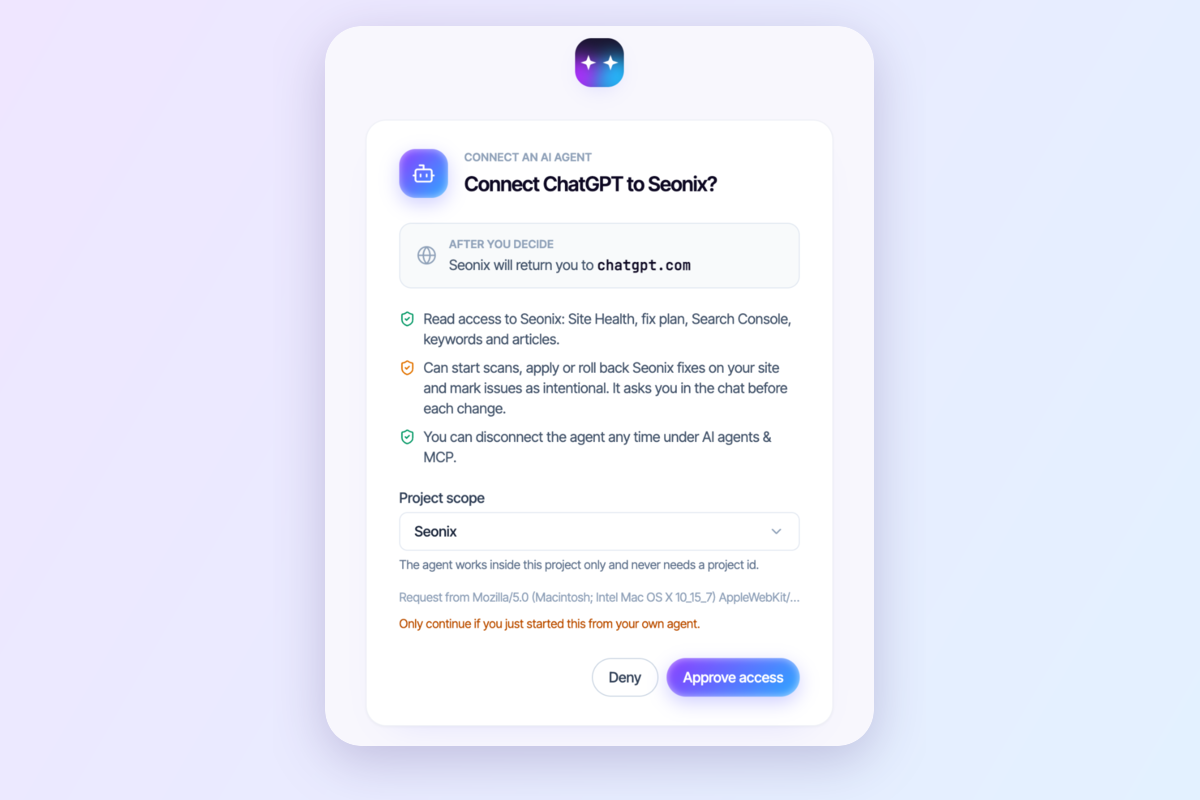
Approve the connection in Seonix. ChatGPT opens app.seonix.ai. The page lists what the connection may do. Choose all your projects or a single site, then click Approve access. No password or API key is pasted into ChatGPT.
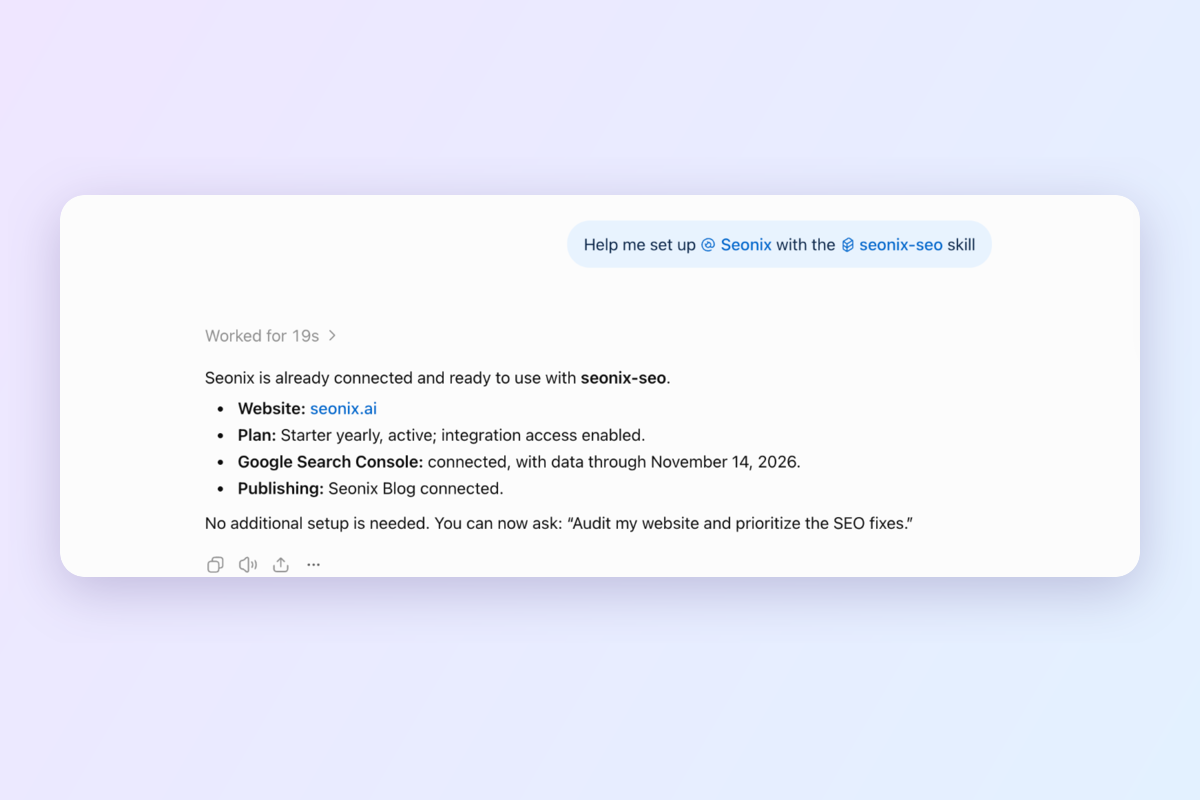
Ask your first question. ChatGPT says Seonix is ready for use. Click Set up Seonix: ChatGPT checks your site, plan and Search Console connection and suggests what to ask first. After that, type @Seonix in any chat.
What You Can Ask ChatGPT About Your Site
Each question below works as written. You do not need SEO vocabulary: ask in plain language and in your own language.
"What are the biggest SEO problems on my site right now?" ChatGPT reads the Site Health score, every open problem and the fix plan, which marks the changes that are safe and the ones that touch pages already bringing visitors from search.
"Which search queries are close to page one and worth a push?" It pulls your Search Console queries at positions 4–20 and the pages that rank for them.
"Which of my pages are not indexed?" It checks the indexing data Seonix collects from Search Console and lists the pages Google left out.
"What should I write next, and why that topic?" It compares your keyword research and content calendar with the articles you already have.
"Check this draft against my site's SEO rules before I publish it." Seonix scores the text with the same SEO, readability and AI-answer checks the dashboard uses, and ChatGPT explains what to fix.
"Where does my brand show up in AI answers?" It reads the latest AI Visibility scan: the questions checked and whether your brand appeared in ChatGPT's answers.
What ChatGPT Can and Cannot Change
Almost everything the plugin does is reading. Four actions change something, and each one runs only when you ask for it in the chat:
Start a Site Health scan
Apply Seonix fixes on a WordPress site connected through the Seonix WordPress plugin
Roll a fix run back
Mark an issue as intentional, and undo that
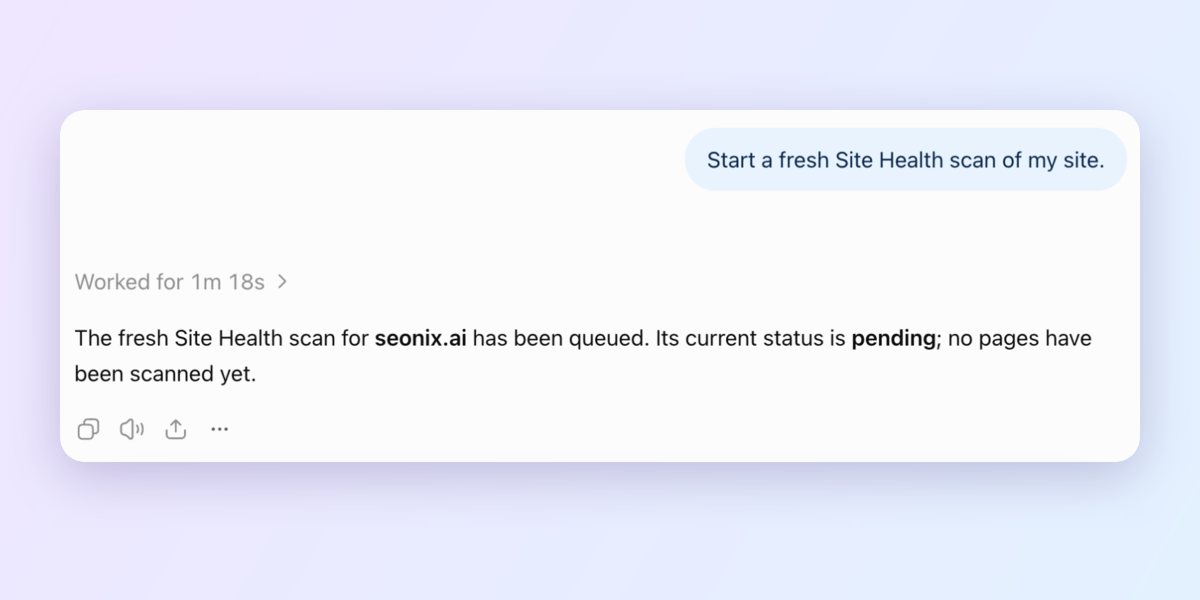
We tested this as well. Asked to start a fresh Site Health scan, ChatGPT queued one and reported its status.
The plugin does not do these things:
Create, edit or publish articles in Seonix. ChatGPT can draft and score text in the chat, but saving and publishing stay in the Seonix dashboard, where Seonix publishes on your schedule to WordPress, Shopify, Webflow, Ghost, Wix or a custom site.
Change your plan, billing, project settings or publishing channels.
Rewrite titles, headings or URLs in bulk. Fixes that could change how a page ranks are never applied as a batch.
Reach a website that is not in your Seonix account.
You stay in control of access. At sign-in you choose whether ChatGPT sees all your projects or one site, and you can disconnect it in Seonix under Account → AI agents & MCP.
What It Costs
The plugin is free to install, and there is no separate fee for using Seonix in ChatGPT. It works with Seonix projects on a paid plan, which start at $49 a month. On the Free plan the plugin connects, but ChatGPT is told the plan does not include it.
If your site is not in Seonix yet, start with the free site analysis: it shows the topics that can bring you customers from Google and AI answers before you pay anything.
Seonix in Other AI Tools
ChatGPT and Codex share one plugin directory, so the same listing serves both. Coding agents such as Claude Code, Cursor and VS Code connect to the same Seonix server through the Seonix MCP, where an agent can read the fix plan and work through it in your code.
FAQ
Is the Seonix plugin for ChatGPT free?
Installing it is free, and Seonix charges nothing extra for ChatGPT access. The plugin needs a Seonix project on a paid plan; paid plans start at $49 a month.
Do I need SEO knowledge to use it?
No. You ask in plain language, for example "what should I fix first?", and ChatGPT explains the answer using your site's data. Seonix does the audit, the keyword research and the scoring in the background.
Can ChatGPT publish articles to my site through Seonix?
No. In ChatGPT you can pick a topic, write a draft and score it with Seonix checks. Publishing is done by Seonix itself, on your schedule or from the dashboard.
I have several websites. Which one does ChatGPT use?
You decide at sign-in. Choose one project and ChatGPT works only with that site, or choose all projects and name the site in your question.
How do I disconnect Seonix from ChatGPT?
In Seonix, open Account → AI agents & MCP and disconnect ChatGPT; access stops at once. You can also remove the plugin in ChatGPT's settings.