
Webflow SEO automation on autopilot
Webflow SEO automation means software runs the content side of SEO for your Webflow site: finding queries with real search demand, writing and optimizing articles, publishing them on a schedule, and tracking what they earn. Seonix does exactly that — it plugs into the CMS collection you already have through the Webflow API and creates each article as a live collection item, with the rich-text body and summary filled in, plus the cover in the image field you map.
Your design, your collection structure, your domain — Seonix only keeps the content flowing. You connect the collection once with an API token, approve the content plan, and choose how much control to keep: review every article inside Seonix first, or let the autopilot publish on the cadence you set. Everything below is what actually ships today.
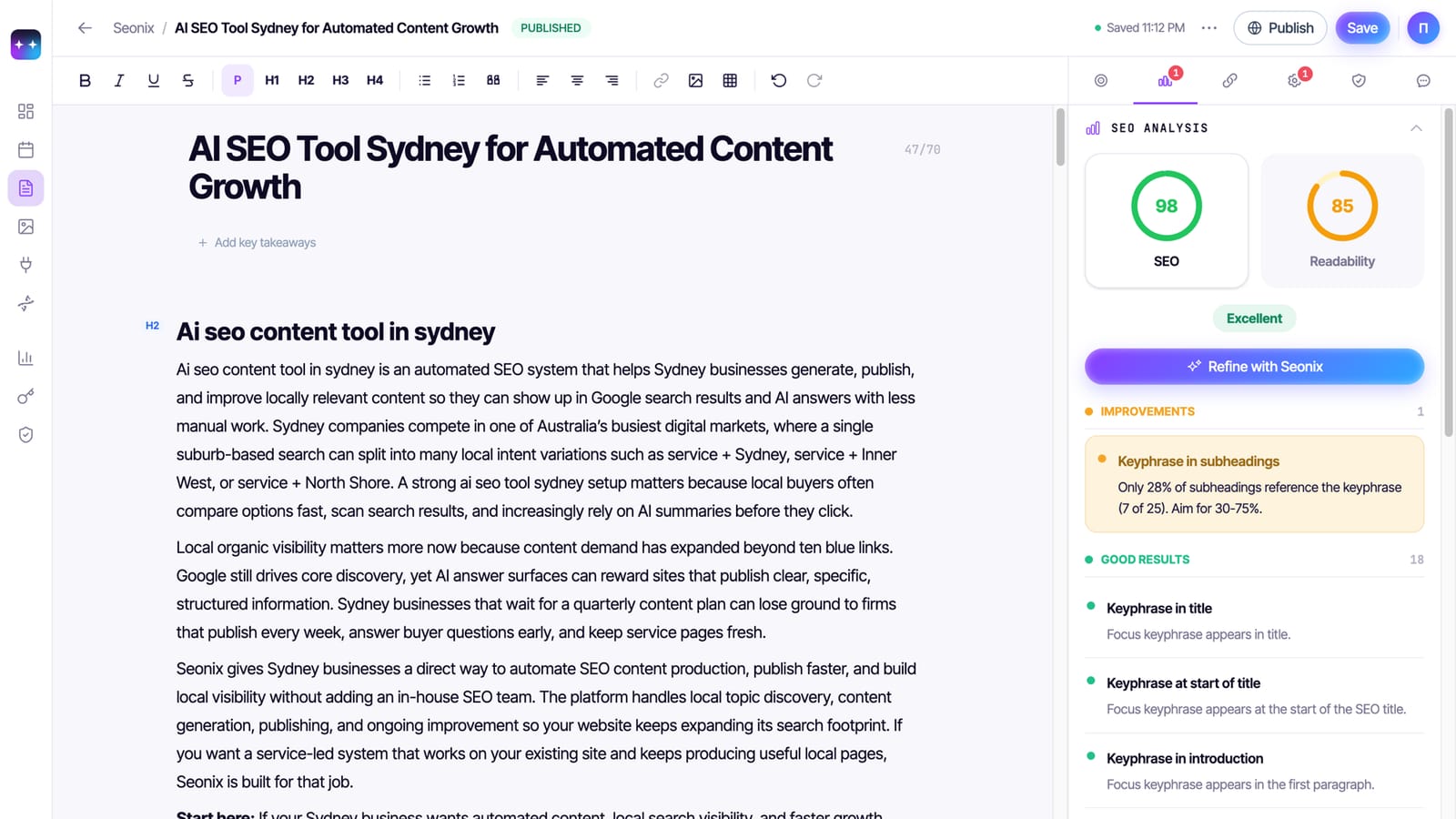
What Seonix runs on your Webflow site
One connected site gets the full loop — the same four stages an in-house SEO process would run, executed continuously.
- 01
Research
Seonix studies your site and builds a project profile — what you sell, who you serve, how your brand sounds. It then researches queries with real search demand, clusters them into topics, and lays them out on a publishing calendar you can edit before anything ships.
- 02
Write and optimize
Each article is generated against your project profile with on-page SEO applied at creation time — structured headings, internal links, and images are part of the draft from the first version. Content generation works in 50+ languages.
- 03
Publish to your CMS collection
Articles are created as items in your existing collection through the Webflow Data API and appear on the live site right away — no manual Publish click for each post. Seonix fills your fields: name, slug, rich-text body, summary, and the mapped cover image field.
- 04
Track and refresh
Seonix follows rankings and traffic for every published page and checks where your brand appears in AI answers. The calendar mixes brand-new articles with refreshes of existing ones, so the pages that win keep getting stronger instead of decaying.
How to connect Webflow to Seonix
Connection is a site API token plus the ID of your blog collection — a few minutes in total, with nothing to install in Webflow and no changes to your design.
One prerequisite: the Webflow site must have been published at least once. If it has not, Seonix shows a clear prompt — open the project in Webflow, click Publish once, then retry.
- 1
Generate a site API token
In Webflow, open Site settings → Apps & integrations → API access and generate an API token with CMS read and write permissions — that is the only access Seonix needs.
- 2
Copy your blog collection's ID
Grab the Collection ID of the CMS collection your blog posts live in — you will find it in the collection's settings in the Webflow CMS.
- 3
Paste both into Seonix
In the Seonix dashboard, open Channels → Webflow and paste the site API token and Collection ID. Optionally map your field slugs for the body, summary, and image; the defaults match Webflow's standard Blog template (post-body, post-summary), so most sites change nothing. The token is stored encrypted.
- 4
Click Connect — Seonix verifies both
Seonix automatically checks the token and the access to your collection the moment you connect, and shows the result on the channel panel. From there the standard flow takes over: free analysis, a keyword-backed content plan, and articles publishing on schedule.
What the autopilot delivers
Auto-publishing has two modes, set per project. In draft mode Seonix plans and writes on schedule, and every article waits for your approval inside Seonix before it goes to your Webflow site. In auto mode articles from the approved plan publish themselves at the scheduled time. The Free plan covers the technical site audit; publishing automation is part of paid plans, starting with Starter at $49/month instead of $100 — 51% off, or $470 a year instead of $1,200.
- Up to 30 published articles per month on the Starter plan
- Publishing cadence from daily to weekly — you set the rhythm
- A visual content calendar you can edit before anything ships
- New articles mixed with refreshes of existing posts
- Email when an article is published; Telegram alerts can also announce drafts ready for review
Built around your Webflow CMS, not against it
Webflow sites are design-first: the CMS collection defines the fields, and your templates define how they render. Seonix respects that split. It writes into the collection you already have, adapts to your field slugs, and leaves the rendering entirely to your design — so automated articles look exactly like the ones you crafted by hand.
Your collection schema, unchanged
Seonix adapts to your existing collection instead of demanding a special one. Field mapping covers the body, summary, and image slugs, and the defaults match Webflow's standard Blog template — so a typical blog connects with zero configuration.
Live items through the Webflow Data API v2
Articles are created as collection items and appear on the live site immediately — no per-post Publish click. The rich-text body arrives complete with subheadings, lists, and images, alongside the name, slug, summary, and the cover in your mapped image field.
Updates without duplicates
Re-publishing an edited article updates the same collection item rather than adding a copy. And Seonix stays out of your manual workflow: updates never touch archived or draft flags you have set yourself in the Webflow UI.
SEO meta the Webflow way
On collection pages, meta titles and descriptions come from templates you define once in the Collection page settings, assembled from item fields. Seonix fills the fields those templates read — the title, summary, and body — so your meta populates exactly the way Webflow intends.
Covers without asset juggling
The cover image is passed to Webflow as a URL object straight into your mapped image field — Seonix does not upload files into your Webflow assets, and there is nothing to clean up later.
Clear guidance instead of cryptic errors
If your Webflow site has never been published, Seonix tells you exactly that and what to do: open the project in Webflow, click Publish once, then retry. After that first publish, the pipeline runs hands-free.
Frequently asked questions
Will my existing blog collection work?
Do I have to click Publish in Webflow for each article?
Can I review articles before they go live on my site?
How are SEO titles and meta descriptions handled?
Does Seonix update articles after they are published?
How much does Webflow SEO automation cost?
Free site analysis
Put your Webflow SEO on autopilot
Start with the free analysis — Seonix studies your business, finds your keywords, and shows the content plan it would run before you pay anything.