
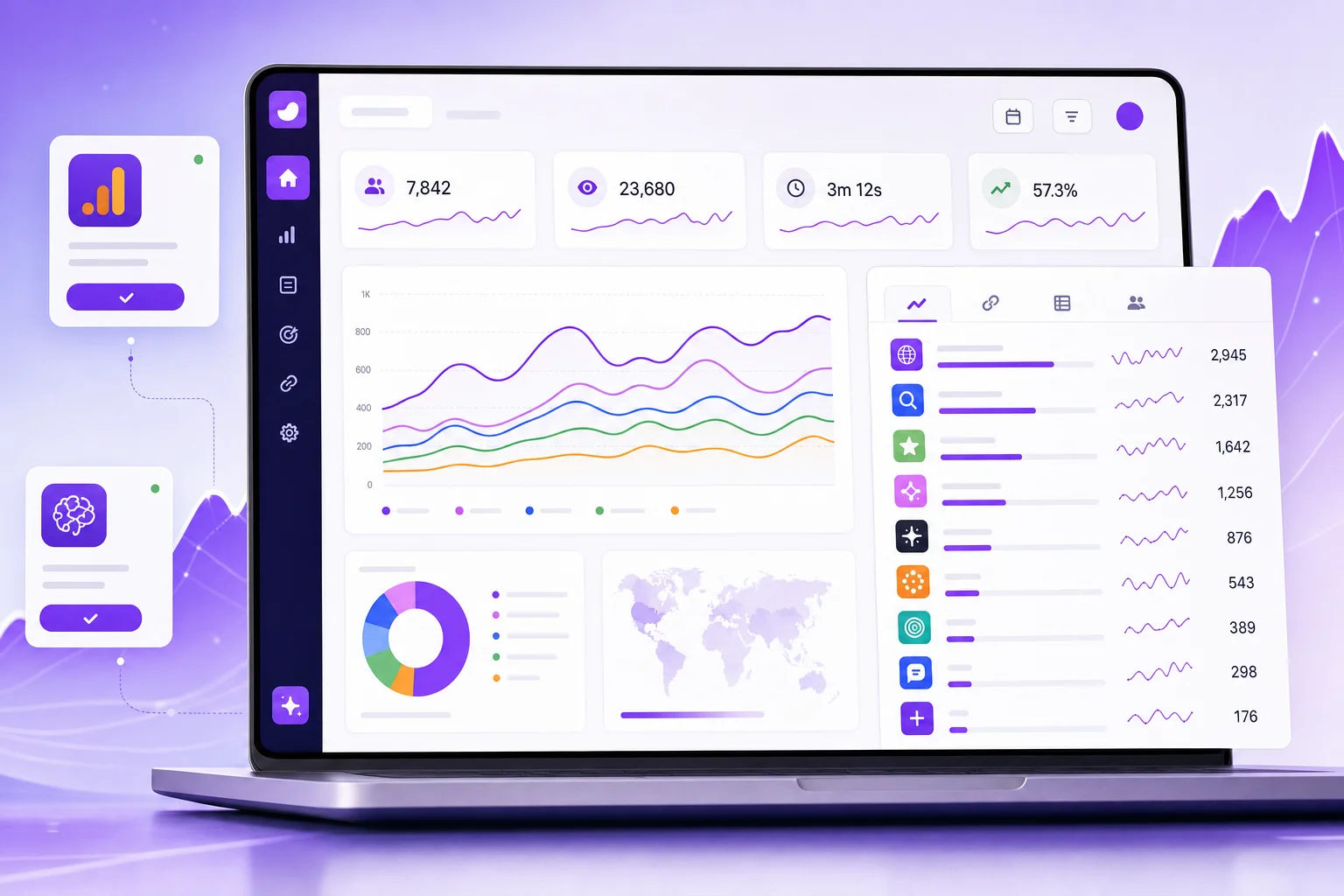
The Seonix Google Analytics integration is live: connect your GA4 property and the Analytics screen shows every visit to your site, where it came from, including ChatGPT and other AI assistants, and which visits became leads or sales.
Those visits sit next to your Google Search Console data. Until now Seonix showed what Google search brings. Now you also see what all your content brings, from every source, on one screen and without opening Google Analytics.
Why use the Google Analytics integration?
Search Console tells you how your pages perform in Google search: impressions, clicks and positions. It does not see the people who come from ChatGPT, from a newsletter, from a link on another site or from typing your address. Google Analytics does. With both connected, you no longer guess whether an article is working. You see the clicks it earns in search and every visit it brings from anywhere else.
This matters more every month, because more and more people find businesses through AI answers. Seonix writes content so your brand shows up in Google, ChatGPT and Gemini answers. With the Google Analytics integration you can see the visits that those answers send to your site.
What does the Google Analytics integration show?
Everything sits on the Analytics screen you already use, so there is nothing new to learn. Here is what appears once your property is connected.
All visits, day by day
A chart shows where your visitors come from, day by day, split by channel: Google and other search engines, AI assistants, social networks, ads, email, referring sites and direct visits. Switch between channels and individual sources, and tap any row to see that source alone on the chart.
Top sources
A list of every source that sent visitors in the period, with its logo, its visits, its share of all visits and its key events. Google, Bing, ChatGPT, Facebook, your newsletter, a partner's blog: each one has its own line.
Visits from AI assistants
AI assistants get their own channel instead of hiding inside "referral". Seonix recognises visits from ChatGPT, Perplexity, Gemini, Claude, Copilot, DeepSeek, Grok, Mistral and other assistants, so you can see whether AI answers already send you customers and which pages they send them to.
Top pages
This list shows where visitors land, by where they came from. For example, filter the list by search, AI, social or any other group to see which pages each source sends people to.
Key events
Key events are the actions you track in Google Analytics: a form sent, a sign-up, a purchase, a call button tapped. Seonix shows how many happened and which sources and landing pages they came from. If your property tracks none yet, Seonix shows how to set them up.
Audience
Finally, devices and countries appear as shares of all visits, so you know whether your readers are mostly on phones and where they live.
How do I see what each article brings?
The Results tab lists every article Seonix published and every page it fixed. With Google Analytics connected, each row adds all visits that started on that page, from any source, next to its Google clicks and positions. An article with modest search clicks can still bring steady visits from AI assistants or from people sharing it. Without the Google Analytics integration that article would look weak; now you see its full value before you decide to rewrite or expand it.
In addition, the same tab counts brand searches: people who search for your business by name. Seonix matches them to your project name and brand words, which you can edit in the project settings.
How do I connect Google Analytics in Seonix?
Setting up the Google Analytics integration takes a few clicks and needs no code on your site.
- Open your project in Seonix and go to Analytics.
- Click Connect Google Analytics and sign in with the Google account that has access to your GA4 property.
- Approve read-only access on Google's screen.
- Pick the GA4 property of your site.
After that, the reports appear right away for the last 28 days, and you can change the period. If you have not connected Search Console yet, connect it on the same screen: the two together give the full picture.
Is my Google Analytics data safe?
Seonix asks Google only for read-only access to Analytics. It can read your reports and list the properties you can see. It cannot change your Analytics settings, tracking or data. Google reviewed this access and approved it for the Seonix Google Analytics integration. The connection is stored encrypted, and you can disconnect it at any time from the Analytics screen; disconnecting removes it from Seonix. Deleting a project removes its Google connections too.
Can my AI agent read Google Analytics data?
Yes. If you work with an AI agent such as Claude, Cursor or Codex, the Seonix MCP server now includes Google Analytics tools. Your agent can check which sources bring visits, which pages people land on and how many visits come from AI assistants, then plan the next changes to your site with real numbers instead of guesses.
Frequently asked questions
Short answers to what site owners ask most about the Google Analytics integration.
Do I need Google Analytics to use Seonix?
No. Seonix plans, writes and publishes content without it, and Search Console already shows how your pages perform in Google. Google Analytics adds every other source and the actions visitors take.
Does Seonix work with Universal Analytics?
No. Universal Analytics stopped collecting data, so Seonix connects to Google Analytics 4 properties only.
Where do the numbers come from?
From Google Analytics itself. Seonix reads the reports your GA4 property already collects. It groups sources its own way, for example AI assistants get a channel of their own, but every visit it shows is one that GA4 recorded.
Can I connect more than one site?
Yes. Each Seonix project connects its own GA4 property.
The Google Analytics integration is available in every Seonix project today. Not using Seonix yet? Run a free site analysis to see the keywords and competitors Seonix finds for your business, or read how Seonix works.